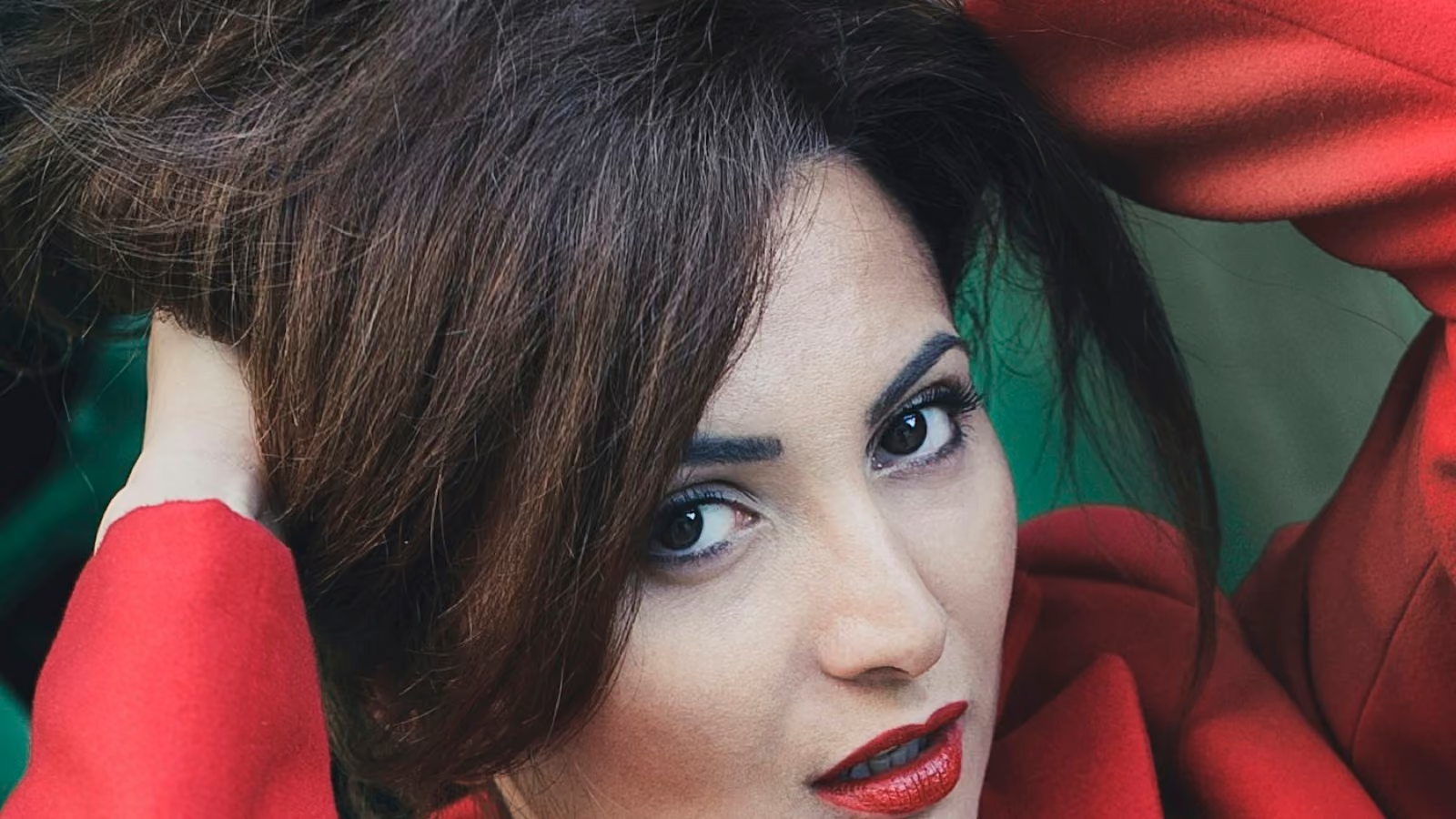
pet
Pet Photos to Pixel Art
Turn a favorite pet photo into a pixel profile. Tune the block size so fur and markings stay readable, then export a crisp avatar for social, forum, or wallpaper use.
/ image to pixel art
Transform photos into crisp pixel art instantly. Customize block size, palette, and dithering, then export a sharp PNG. Image processing runs in your browser with no signup and no upload.
✓Free ✓Image stays local ✓ No signup
Basic analytics may record tool actions, never image contents or file names.
pet
Turn a favorite pet photo into a pixel profile. Tune the block size so fur and markings stay readable, then export a crisp avatar for social, forum, or wallpaper use.
game
Build retro-style heroes, enemies, and sprites from a reference image. Snap to a limited palette for an authentic 8-bit or 16-bit look that fits straight into a game.
minecraft
Convert a scene into block-scale pixel art you can rebuild in a Minecraft world. Larger blocks read as chunks and are easier to place block by block.
styles
Keep the original colors for a clean downscaled look, snap to a PICO-8-style 16-color palette for NES vibes, or compress everything into the four classic Game Boy greens. Switch palettes live and watch the pixel art update instantly.
builds
Raise the block size to turn a photo into chunky references that map cleanly onto Minecraft blocks. Each block becomes one color, so you can rebuild the image block by block in survival or creative.
export
The preview and download keep image smoothing off, so every pixel stays a hard edge. Export a sharp PNG that scales without blur, ready for games, avatars, or print.
styles explained
The same photo becomes three very different pieces of pixel art depending on the palette you choose. Here is what each style does to your image and when to reach for it.
Full color keeps every original hue and only downsamples the resolution. The result reads as the same photo, just rebuilt from larger, blockier pixels. It is the safest starting point for realistic portraits, product shots, and any image where color accuracy matters. Because no palette is enforced, gradients and skin tones survive intact — you simply choose how coarse the pixel grid is, and the converter handles the rest.
The retro palette snaps every block to a fixed 16-color PICO-8-style set, echoing the NES and classic home computers of the 1980s. Colors flatten and saturate, giving sprites and characters an authentic 8-bit look straight out of a cartridge. Pair it with dithering to recover the shading that such a limited palette would otherwise lose, so faces and rounded shapes still read at small sizes.
The Game Boy palette compresses the entire image into just four shades of green, the same hard constraint the original 1989 handheld used. Fine detail gives way to mood and silhouette, which is exactly the appeal. Photos with strong contrast and clear shapes convert best, while busy scenes turn into atmospheric monochrome pixel art popular for nostalgic avatars and tribute artwork.
Not sure which to pick? Start with full color to see how the pixel grid reads, then switch to retro or Game Boy once you know the composition works. Every palette is a one-click change and the preview updates instantly, so you can compare styles side by side before you export.
compare palettes
The same source photo, converted three ways in your browser. Full color keeps every original hue, retro snaps to a 16-color PICO-8 set, and Game Boy compresses everything into four greens. Switch the source image to see how each palette handles portraits, pets, and game characters differently.
how it works
Pixvael reads your photo through an HTML5 canvas and slices it into a grid of small blocks. Each block is averaged down to one color, which is what turns a smooth photo into chunky pixel art. From there you decide the look: keep the full original color, snap every block to a limited palette like PICO-8 or Game Boy, or add Floyd-Steinberg dithering to fake extra shades. Because the whole image-to-pixel-art conversion runs in your browser, the photo never leaves your device and the preview updates the moment you move a slider.
use cases
Pixel art turns an ordinary photo into something nostalgic, readable at a glance, and easy to reuse. Game developers drop converted sprites straight into engines; streamers and forum users set them as avatars; teachers use them in retro-computing and game-design lessons; and hobbyists rebuild them as Minecraft blueprints or cross-stitch patterns. Because the output is a hard-edged PNG, it scales without blur and stays crisp on any screen.
tips
Start with a well-lit, high-contrast photo and crop tight on the subject. Match the block size to the detail you want to keep — smaller blocks preserve features, larger blocks read as bold pixel art. Pick a palette that fits the mood: full color for realism, retro 16-color for 8-bit charm, or Game Boy greens for classic handheld nostalgia. Toggle dithering on to recover shading in dark or smooth-gradient areas.
faqs
Practical notes about privacy, exporting, and getting cleaner pixel art from real photos.
/ open tool
input JPG, PNG, WebP
output crisp PNG
privacy local image processing
Full Color
Every original hue, only downscaled.
Retro 8-bit
16 PICO-8 colors with dithering.
Game Boy
Four classic greens with dithering.